
How to pass Data from Omniscript to Custom LWC? In this article, we will walk through how to create a custom Lightning Web Component (LWC) that receives data from an OmniScript in two different ways:
- Using @api property (Directly Passed Property).
- Using this.omniJsonData (OmniScript JSON Data Object).
How to pass Data from Omniscript to Custom LWC?
We want our LWC (childLWC) to display a color name and its value, which are set in the OmniScript using two different methods:
- Directly via a property (@api) from a Set Values JSON (currentColor).
- Indirectly from the OmniScript JSON object (this.omniJsonData.data).
LWC Setup: childLWC
1. HTML File (childLWC.html):

2. JavaScript File (childLWC.js):
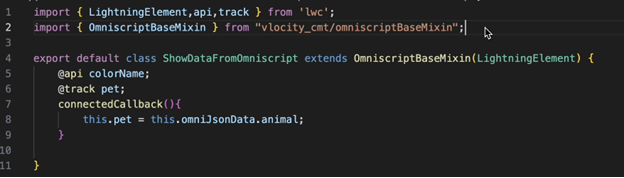
OmniscriptBaseMixin(LightningElement): This is a special mixin provided by Vlocity/Industries (Salesforce OmniStudio).
- It gives your LWC direct access to OmniScript data using this.omniJsonData and other OmniScript methods.
- This is critical for accessing and interacting with the data directly in OmniScript.
@track makes variables reactive, automatically updating the UI when their values change.
@api exposes a property to the parent component, allowing direct data passing to the LWC.
3. Configuration File (childLWC.xml):
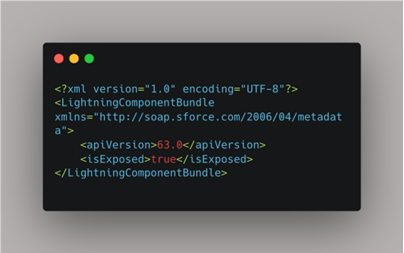
Setting <isExposed>true</isExposed> means that the LWC can be used outside the Salesforce Experience Builder or directly in an OmniScript.
Also Read: How to Enable Debug Mode for Lightning Web Components in Salesforce?
OmniScript Setup
Two Set Values Elements:

- setData (First Set Value)
- setDataOmni (Second Set Value)
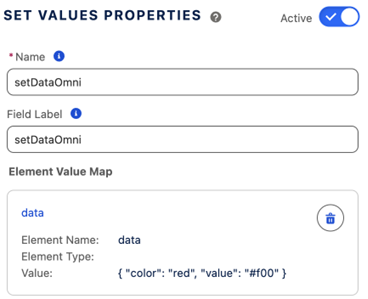
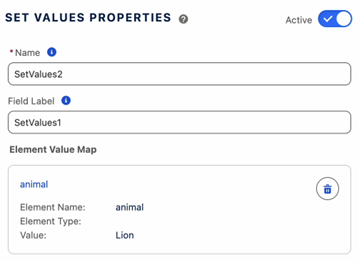
Custom LWC Element (Adding the LWC):
From the build panel in your omniscript, drag and drop Custom Lightning Web Component into your OS Step and in its properties panel.
Search for our customLWC.
- LWC Name: childLWC (API Name of your custom LWC).
And pass the “CUSTOM LIGHTNING WEB COMPONENT PROPERTIES” as
- Property Name: color.
- Value: %currentColor% (This passes the JSON value directly to the LWC).

How It Works?
- The OmniScript passes two sets of data:
- colorName (JSON as a String) to the LWC using the @api property.
- In the LWC:
- The @api property (colorName) receives the JSON directly from the OmniScript.
- The JSON strings are parsed using JSON.parse() to convert them into JavaScript objects.
- These parsed objects are then displayed in the LWC HTML.
Why Use Two Methods?
- @api Property: Direct and fast. Ideal for small data directly passed to the LWC.
- this.omniJsonData: Flexible for accessing any data within the OmniScript, especially useful when you have multiple data values and want to dynamically access them.


