
Debug Logs in Salesforce are a valuable tool for developers, administrators, and troubleshooters to capture detailed information about the execution of code, workflows, and other processes in the Salesforce platform. They allow you to monitor and analyze what happens during the execution of a transaction, which helps in identifying issues, errors, or performance bottlenecks.
Why Use Debug Logs?
- Troubleshooting Errors: If a user encounters an error, you can use the debug logs to identify the root cause, such as unhandled exceptions, permission issues, or business logic errors.
- Performance Monitoring: Debug logs can help track the execution time of certain actions, helping optimize the performance of code or workflows.
- Apex Code Debugging: Debug logs are essential for tracking the flow of Apex code execution, understanding variable values, and checking for errors.
To capture debug logs for troubleshooting in Salesforce, you can follow these steps:
- Log in to Salesforce and go to Setup.
- In the Quick Find box, type Debug Logs and select Debug Logs.
- Click New to create a new log entry.
- Select the User for whom you want to capture the logs. This will typically be your user account for testing.
- Set the Debug Level (e.g., FINEST for the most detailed logs or INFO for general logs). You can customize the levels for Apex Code, Apex Profiling, Visualforce, Workflow, Validation, etc.
- Define the Start Date and Expiration Date for capturing logs.

Generate the Logs:
- Trigger the action or process that you want to troubleshoot. This could be running a batch job, executing a trigger, or performing a workflow action.
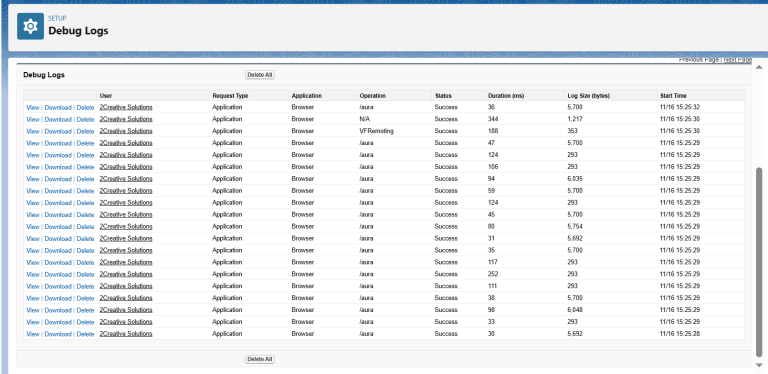
- After performing the action, go back to Debug Logs in Salesforce Setup. The logs should be listed under Log Files.
Download and Review Logs:
- Click on the View link next to the log entry to see the captured log details.
- Analyze the logs for any errors, exceptions, or unusual behavior. Look for System.debug() statements or error messages in the log.
Adjust Debug Levels if Necessary:
- If the logs aren’t providing enough detail, adjust the Debug Level to a more detailed level (e.g., FINEST) and repeat the process.


