
In this tutorial, we’ll walk through a powerful OmniScript use case where we manage Date and Date/Time inputs in omniscript salesforce, convert them across multiple time zones, and dynamically set default dates, min dates, and max dates.
We’ll also see how to properly display the selected dates from the running User’s Local time zone to Australia, Paris, and the User’s Current time zone.
Use Case: Scheduling a Service Appointment
Imagine a customer booking a broadband installation through your self-service portal built with OmniScript. The customer needs to pick:
- Preferred Installation Date (If only Date is required)
- Preferred Installation Date Time Slot (Date/Time input)
In this scenario, we will:
- Let the user select the date and time.
- Convert the time to Australia/Sydney, Europe/Paris, and the User’s Current time zone.
- Display the converted date and time in real-time.
Also Read: Import & Export Omniscripts in New Designer
Step 1: Set Up Date and Date/Time Inputs
In Step 1 of the OmniScript, we start with two critical fields: the Date field and the Date/Time field.
Date Field Configuration
- Default Date: Set the default date to Today so that it pre-fills the current date for the user.
- Start Date: Restrict the user from selecting any past date by setting the min date to Today.
- End Date: Allow the user to select a future date up to 1 year ahead by setting the max date to Today + 1 year.
Example:
- Default = Today
- Min Date = Today
- Max Date = Today + 1 year

Date/Time Field Configuration
For the Date/Time field, we allow the user to pick both the date and the time. The local time zone will be used to adjust the time based on the user’s browser or Salesforce settings.

Step 2: Handling Time Zone Conversion with DataRaptor
Once the user selects the date and time, we capture this value in a Set Values element and store it in the variable setDateTime. By default, this value is saved in UTC.
We then use DataRaptor to transform this UTC time into three different time zones:
- Australia/Sydney
- Europe/Paris
- User’s Current Time Zone
DataRaptor Formula for Time Zone Conversion
To convert the stored UTC time into these time zones, we use the following formulas:Australia/Sydney:
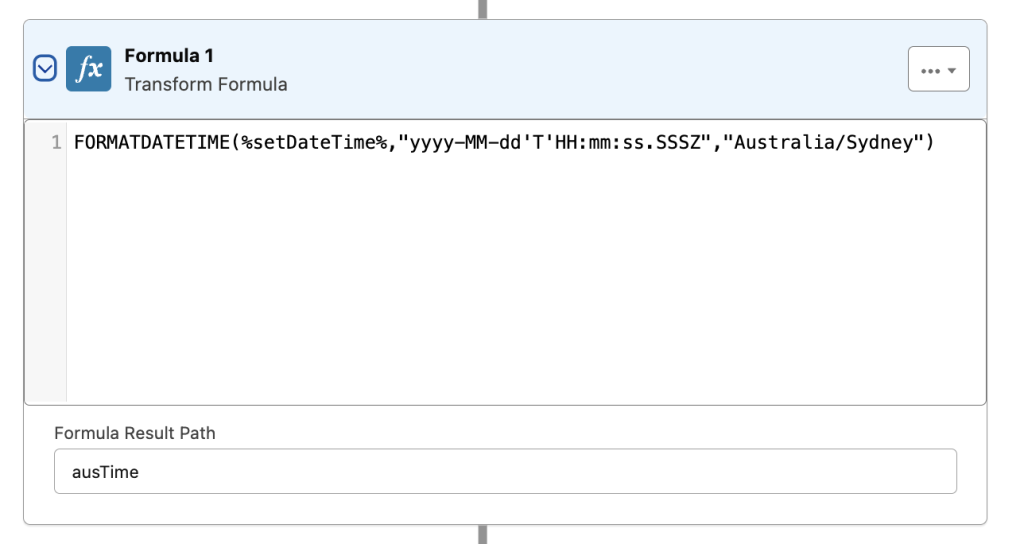
%FORMATDATETIME(%setDateTime%,"yyyy-MM-dd'T'HH:mm:ss.SSSZ","Australia/Sydney")%Europe/Paris:
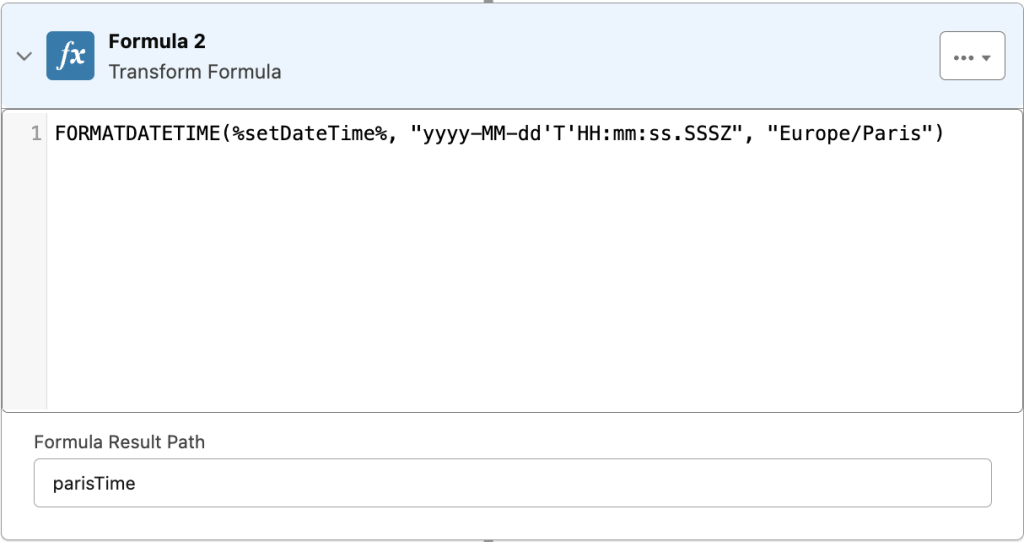
%FORMATDATETIME(%setDateTime%,"yyyy-MM-dd'T'HH:mm:ss.SSSZ","Europe/Paris")%User’s Time Zone (dynamic):
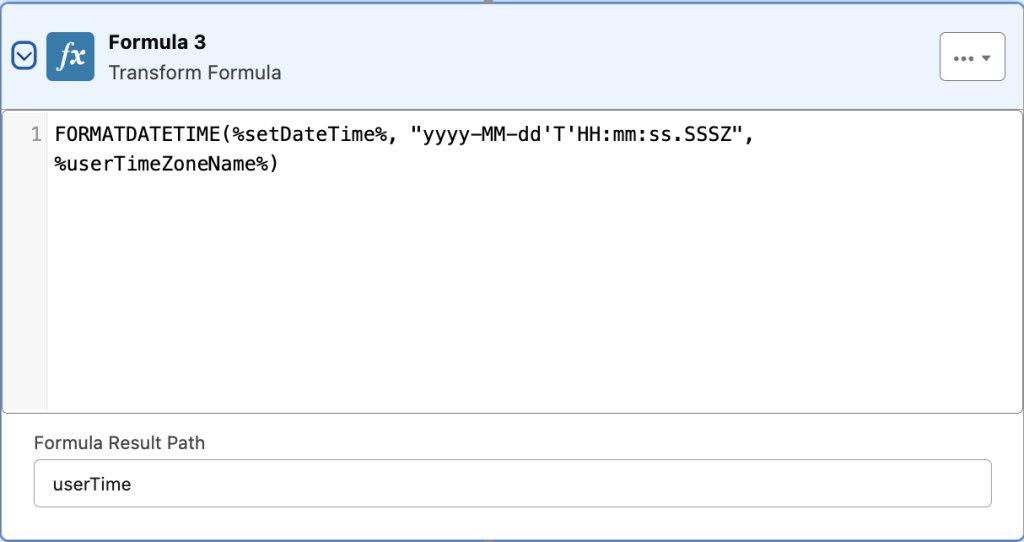
%FORMATDATETIME(%setDateTime%,"yyyy-MM-dd'T'HH:mm:ss.SSSZ",%userTimeZone%)%These formulas will convert the stored UTC time (setDateTime) into each of the respective time zones, ensuring that the time shown to the user is accurate.
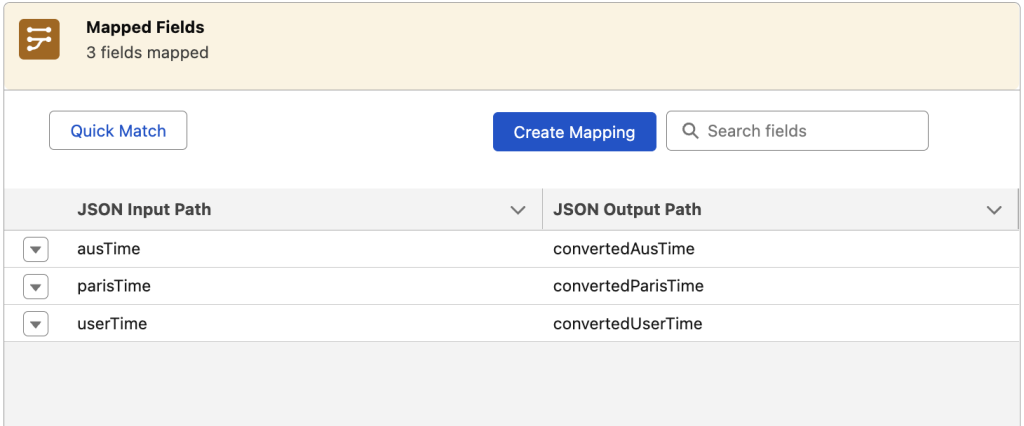
Step 3: Displaying Converted Time Zones
In Step 2 of OmniScript, we display the converted date and time in three fields:
- Australia/Sydney Time Zone
- Europe/Paris Time Zone
- User’s Current Time Zone

These fields will dynamically update and show the correct date and time based on the user’s selection, and will adjust automatically to their local time zone, the Australian time zone, and the Paris time zone.
Key Points Covered in This Example:
- Date and Date/Time Inputs:
- Setting the default date to Today.
- Configuring min date and max date to ensure valid date selections.
- Date/Time fields with local timezone handling.
- Time Zone Conversion:
- Using DataRaptor to convert UTC time into Australia, Paris, and User Time Zones.
- Dynamically pulling the user’s time zone with %userTimeZone% and passing it into the formula.
- Display Converted Values:
Display the converted Australia/Sydney, Europe/Paris, and User Time Zone values in text fields.
Conclusion
This simple yet powerful solution in OmniScript allows you to capture, convert, and display time values across different time zones—from a local time picker to globalized date and time handling. By leveraging DataRaptor formulas and Set Values, you can ensure users get the correct date and time representation, no matter where they are in the world.where they are in the world.


