
How to do polling in LWC? Polling means repeatedly calling a data source at set intervals—typically used when an API might fail temporarily or to continuously check for updates so that the latest information can be displayed.
Before implementing polling, there are a few things to consider:
- What are we polling?
- How many times do we want to poll?
- Under what conditions should polling stop?
In this article, we will learn how to implement polling for an Integration Procedure (IP) in LWC. Depending on your needs, you can use this approach to call a DataRaptor, API, or any other service.
We will call an Integration Procedure, receive data in response, and display it in a lightning-dataTable within LWC. We will set-up the polling to run 10 times and any changes in the object data will be automatically reflected in the table during those polling intervals.
Also Read: Vlocity Environment Variable Guide
Before starting our implementation
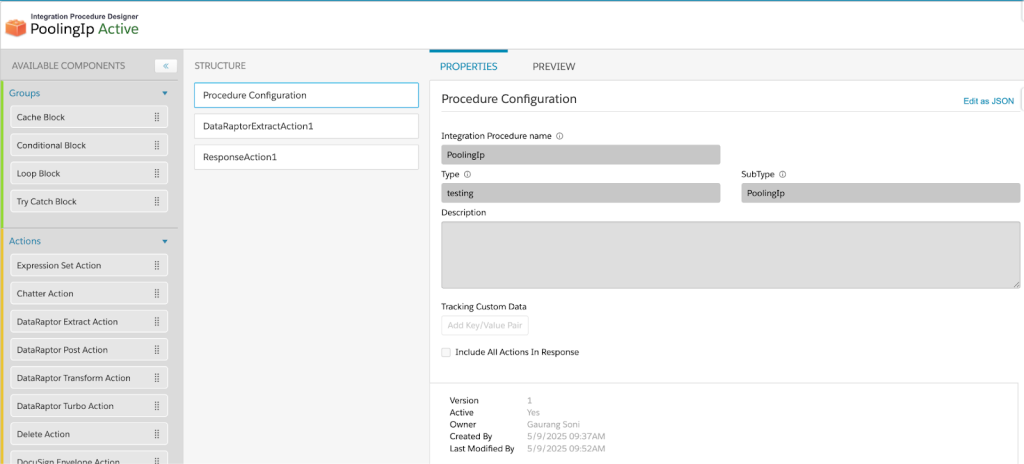
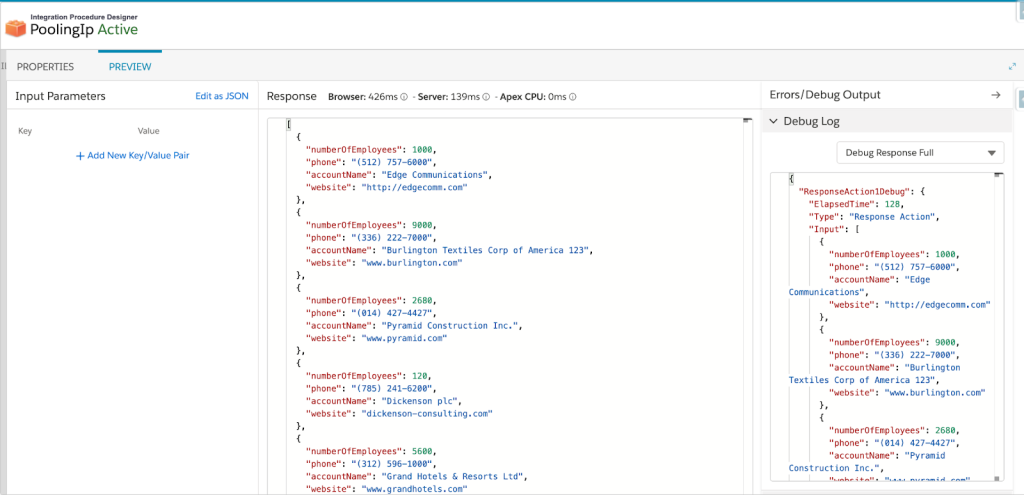
Make sure you have IP which will return data and that IP we will call in LWC. As in the image below, here is our IP and it is returning Account Details.
This is the data returned by IP which will show on screen
For now, we will create a variable intervalId, which will be used to clear the setInterval, and a variable polling counter, which will increment by 1 with every polling attempt.
In the connectedCallback, we will call our invokeIp function to execute the IP call every 5 seconds.
We are using JavaScript’s built-in setInterval method for polling the IP. Based on certain conditions, we can stop the polling.
To stop the polling, we simply need to clear the interval using intervalId.
export default class Checking extends LightningElement {

   intervalId;

   pollingCounter=0;

   connectedCallback()

       {

         this.intervalId=  setInterval(()=>{

                this.invokeIP();

           },5000)

       }


   invokeIP(){

       if(this.pollingCounter<10){

           this.handleIPCall();

           this.pollingCounter++;

       }

       else{

           clearInterval(this.intervalId);

       }

   }

   handleIPCall(){

       const params={

           input: '{}',

           sClassName: "omnistudio.IntegrationProcedureService",

           sMethodName: "testing_PoolingIP",

           options: '{}',

       }

       this.omniRemoteCall(params,true).then(response => {

          console.log("Integration Procedure Result: ", this.data);

       }).catch(error => {

          console.error("Error calling Integration Procedure: ", error);

       });

   }

}
Now, we will display the IP response data in a Lightning datatable. Let’s add the code for the Lightning datatable in the LWC.
For the datatable, we need both the column definitions and the table data.
We will prepare the column configuration and assign the IP response data to a data variable, which will be used in the HTML part of the LWC.
import { LightningElement,track } from 'lwc';

import { OmniscriptBaseMixin } from "omnistudio/omniscriptBaseMixin";

const columns = [

   { label: 'Account Name', fieldName: 'accountName' },

   { label: 'Website', fieldName: 'website', type: 'url' },

   { label: 'Phone', fieldName: 'phone', type: 'phone' },

   { label: 'Number of Employee', fieldName: 'numberOfEmployees' }

];

export default class Checking extends OmniscriptBaseMixin(LightningElement) {

   intervalId;

   @track data;

   columns = columns;

   pollingCounter=0;

   connectedCallback()

       {

         this.intervalId=  setInterval(()=>{

                this.invokeIP();

           },5000)

       }

   invokeIP(){

       if(this.pollingCounter<10){

           this.handleIPCall();

           this.pollingCounter++;

       }

       else{

           clearInterval(this.intervalId);

       }

   }

   handleIPCall(){

       const params={

           input: '{}',

           sClassName: "omnistudio.IntegrationProcedureService",

           sMethodName: "testing_PoolingIP",

           options: '{}',

       }

       this.omniRemoteCall(params,true).then(response => {

           this.data=response.result.IPResult;


          console.log("Integration Procedure Result: ", this.data);

       }).catch(error => {

          console.error("Error calling Integration Procedure: ", error);

       });

   }

}
HTML of the LWC where we are using the lightning data table component and passing attributes, columns, data.
<template>

   <div style="height: 300px;">

       <lightning-datatable

               key-field="id"

               data={data}

               columns={columns}>

       </lightning-datatable>

   </div>

</template>
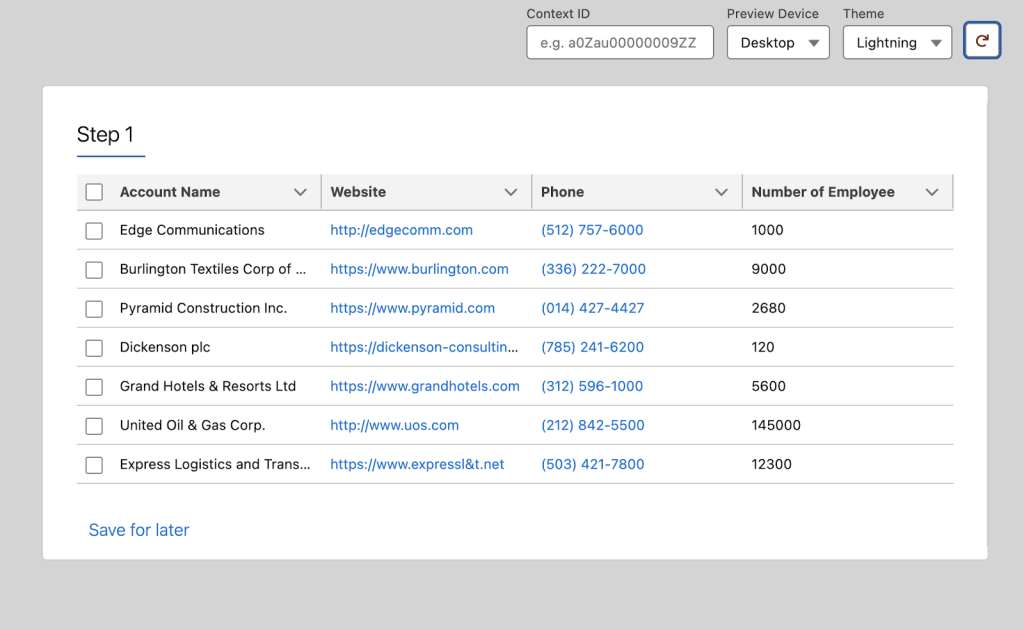
Now our table look like as shown below
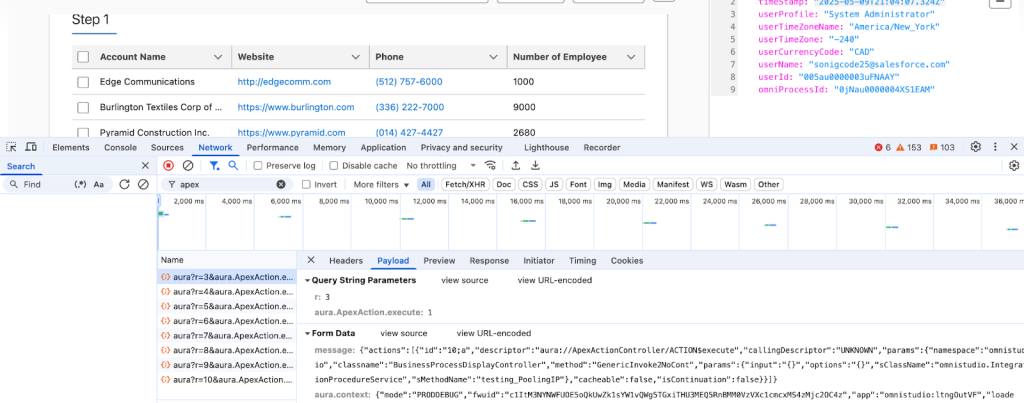
To check whether our polling is working or not, there are two ways:
- Open the Network tab in your browser’s developer tools and observe that requests are being sent to our IP 10 times.
- While polling is in progress, you can modify the Account (or other object) data using Salesforce Inspector and verify in the datatable whether your changes are reflected. While polling is happening Ip will return updated data.


